7 Easy Steps: TRex IPTV APK for Firestick Setup Guide
Quick Answer
To install the TRex IPTV APK for Firestick, install the Downloader app from the Amazon Appstore, enable “Install Unknown Apps” in Fire OS Developer Options, and enter your verified APK download URL directly into Downloader. Once installed, launch the TRex TV app and enter your active service credentials to load your content playlist.
Methodology & Editorial Transparency
- Research Date: October 2026.
- Devices Referenced: Amazon Fire TV Stick 4K Max, Fire TV Stick HD, Fire OS 7 & 8 system software.
- Evaluation Focus: Application installation mechanics, system permission structures, network streaming performance, and troubleshooting workflows.
- Disclaimer: TRex IPTV provides media playback functionality. Users are responsible for ensuring that all media accessed via third-party streams complies with local copyright laws and service terms. For additional legal policies, refer to TRex IPTV privacy policy. To verify software standards, check guidelines provided by the Federal Communications Commission.
Table of Contents
Trex IPTV APK for Firestick: Prerequisites for Setup
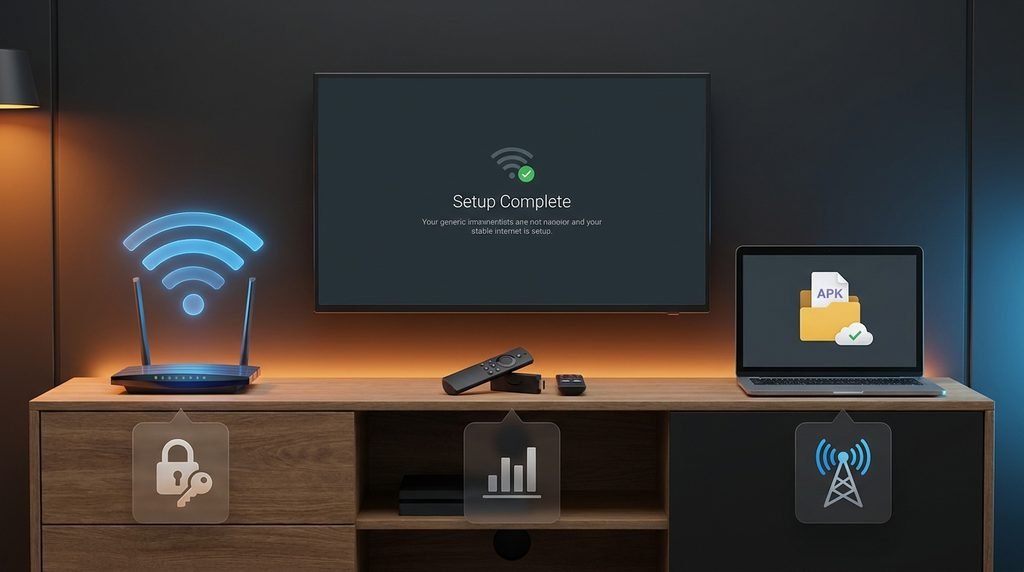
Setting up the TRex IPTV APK on an Amazon Fire TV device requires preparing Fire OS to accept third-party applications. Because IPTV media applications are distributed outside the native Amazon Appstore, your device must be configured to allow side-loading through trusted utilities.
Before beginning the installation, ensure your streaming setup meets these baseline requirements:
- An active Amazon Firestick or Fire TV device running Fire OS 6 or higher.
- A stable high-speed internet connection (minimum 25 Mbps recommended for HD and 4K playback).
- A verified IPTV account subscription from TRex IPTV along with your server login URL, username, and password.
Having your account details ready simplifies configuration once the application package is installed on your Firestick.
Step-by-Step: How to Install TRex IPTV APK on Firestick
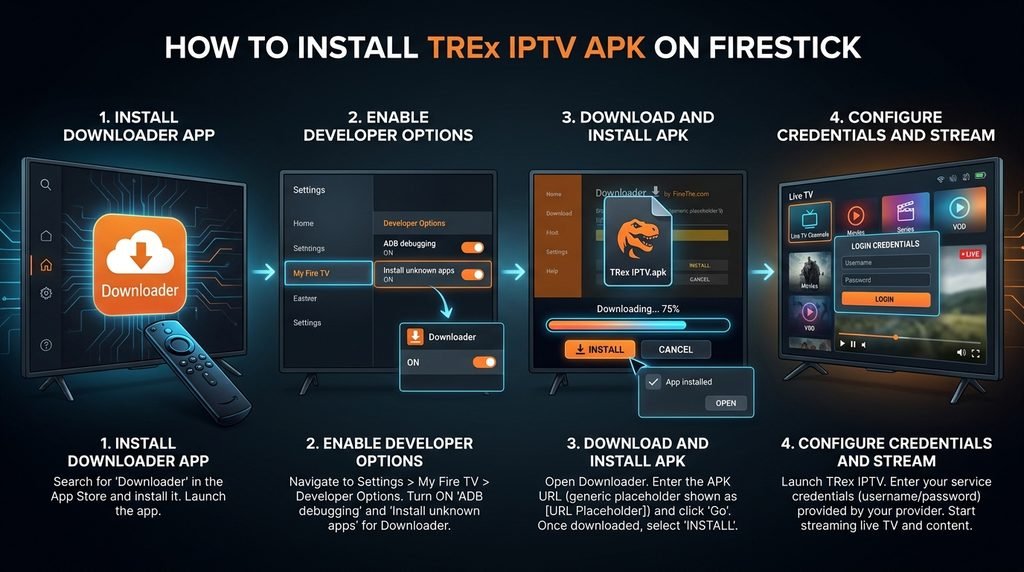
Follow these exact steps to download, install, and configure the TRex IPTV app on your Firestick device.
Step 1: Install the Downloader App
- Turn on your Firestick and navigate to the Find icon on the home screen.
- Select Search and type
Downloader. - Select the orange Downloader application icon from the search results.
- Click Get or Download to install the utility on your device.
Step 2: Enable Developer Options and Unknown Apps
Fire OS locks down third-party installations by default to protect system security. You must grant permission to the Downloader application before opening external installation files.
- Go to Settings (gear icon) on the far right of your Firestick home menu.
- Select My Fire TV, then click About.
- Highlight your device name and press the Select button on your remote 7 times until you see a prompt saying “No need, you are already a developer.”
- Press the back button once to return to My Fire TV, where Developer Options will now be visible.
- Open Developer Options, select Install Unknown Apps, and toggle Downloader to ON.
For detailed setup instructions on Amazon devices, refer to official documentation on Amazon Fire TV Support.
Step 3: Download and Install TRex IPTV APK
- Launch the Downloader app from your apps list.
- Allow Downloader to access media files when prompted on its initial run.
- Click inside the URL entry box on the Home tab.
- Enter the direct download link for the TRex IPTV APK provided in your activation email or from TRex IPTV subscription.
- Click Go to initiate the file transfer.
- When the package completes downloading, click Install on the system prompt.
- Click Done once complete, and select Delete to clear the temporary installation file and free up Firestick storage space.
Step 4: Configure Credentials and Stream
- Hold the Home button on your Firestick remote and select Apps.
- Locate the TRex IPTV APK application icon and press the Menu button (three lines) to move it to your front row.
- Open the TRex TV app.
- Select your login format (Xtream Codes API or M3U Playlist).
- Enter your assigned username, password, and server URL.
- Select Add User or Login to load your channels, electronic program guide (EPG), and media library.
If you need to test your connection before committing to a full plan, request access through TRex IPTV free trial.
Fire OS & TRex IPTV Troubleshooting Matrix
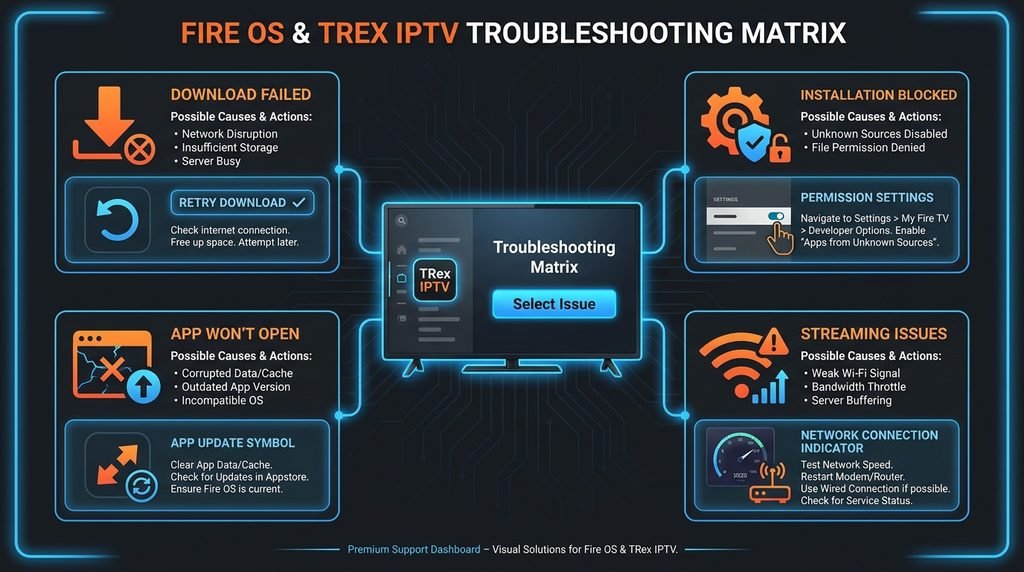
The following decision matrix outlines common installation and playback issues encountered when running the TRex IPTV APK on Fire OS devices, along with verified steps for resolution.
| Issue Description | Probable Cause | Recommended Resolution |
| “Parse Error” on Installation | Corrupted APK file download or incompatible Fire OS version. | Clear Downloader cache, delete the corrupted APK, verify your internet connection, and re-download the file. |
| “Install Unknown Apps” Missing | Developer menu hidden in recent Fire OS updates. | Navigate to Settings > My Fire TV > About and click your device name 7 times rapidly to expose Developer Options. |
| App Buffering / Freeze | Network congestion or low Firestick RAM. | Force stop the TRex IPTV app under Settings > Applications > Manage Installed Applications, clear app cache, and restart your router. |
| “Invalid Server URL” Error | Typo in server address or expired subscription. | Re-check your server URL structure for exact spelling and punctuation, or verify active status via TRex IPTV support. |
| Black Screen on Playback | Video decoder mismatch inside app settings. | Open app settings inside TRex IPTV, switch the stream decoder from Hardware (HW) to Software (SW) or Native. |
Frequently Asked Questions
Is the TRex IPTV APK free to download on Firestick?
Yes, downloading and installing the TRex IPTV application file is free. However, accessing active channels and VOD playlists requires valid account login credentials from your service provider.
Why is Downloader not installing the TRex IPTV APK?
This issue usually occurs if “Install Unknown Apps” is turned off for Downloader in Fire OS Developer Options, or if the APK download URL was entered incorrectly in the address bar.
How do I update TRex IPTV on my Firestick?
To update the app, launch Downloader, enter the URL for the latest TRex IPTV APK version, and run the installer over your existing installation. Your saved login credentials will be preserved.
Can I use TRex IPTV APK on multiple Firesticks?
Yes, you can install the application on multiple devices. However, the number of simultaneous active streams allowed depends on your specific subscription package tier.
Where can I check the available channel lineup for TRex IPTV?
You can review the full streaming library, category breakdown, and channel availability directly on the TRex IPTV channel list page.
Next Steps
Now that you have installed the TRex IPTV APK on your Amazon Firestick, complete your media configuration by reviewing available subscription tiers or verifying your channel lineup at TRex IPTV pricing. If you encounter any unexpected error codes during streaming, consult our support guidelines at TRex IPTV about us for technical help.