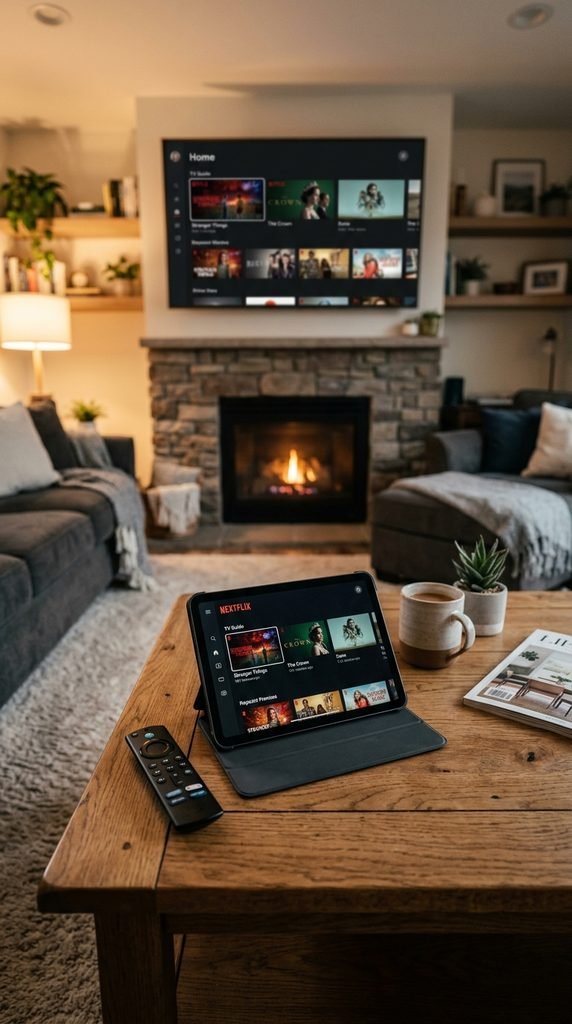
The Trex IPTV EPG is an electronic program guide that pulls live television schedules, show titles, and broadcast times into your streaming application. It functions by fetching real-time schedule feeds through an XMLTV link or an Xtream Codes API connection, mapping metadata directly to the channel lineup you stream on your device. Without a working EPG, your player displays raw channel names without any context on what is currently airing or what scheduled programs come next.
For example, a user setting up TiviMate for the first time might see hundreds of live sports and news streams, but the channel interface remains empty until the app successfully communicates with the upstream schedule servers. Understanding whether your service uses a direct API feed or a manual XMLTV source dictates how smoothly your schedule data syncs. When properly configured, schedule updates occur in the background every few hours.
Key Takeaway: The EPG transforms raw stream links into a familiar, cable-style television guide with automated program metadata.
Device and Player Compatibility for the Trex EPG
Not all streaming hardware and media players handle electronic program guides with equal efficiency. Heavy XMLTV files require adequate device memory and fast processing speeds to prevent application crashes or stuttering interface navigation during heavy channel scrolling. Selecting a player designed for high-capacity playlists ensures your schedule loads instantly without freezing your streaming hardware.
Streaming Device / Player
Native EPG Support
Recommended Setup Method
Performance Rating
Amazon Firestick 4K
Moderate
Xtream Codes API (TiviMate)
Excellent
Android TV / Google TV
Full
Xtream Codes API (Sparkle / TiviMate)
Excellent
Apple TV
Limited
M3U + XMLTV URL (iPlayTV)
Good
Smart TVs (Samsung / LG)
Basic
Xtream Codes API (IPTV Smarters Pro)
Fair
As noted in official Amazon Fire TV documentation, hardware resource allocation heavily influences background data fetching, making efficient caching essential for large-scale media lists.
Key Takeaway: Match your player choice to your hardware capabilities to ensure large EPG files load smoothly without crashing your system.
How Do I Set Up the Trex EPG? (Step-by-Step)
Setting up your electronic program guide correctly depends on whether you authenticate via an automated application programming interface or a manual playlist link.
Loading the EPG via Xtream Codes API
Using an Xtream Codes API login is the fastest and most reliable method for configuring schedule data because it bundles your live channels, video-on-demand libraries, and EPG source into a single unified profile.
Open your preferred IPTV player, such as TiviMate or IPTV Smarters Pro.
Select Add Playlist and choose Xtream Codes API as your login type.
Enter your server URL, username, and password provided in your subscription dashboard.
Leave the EPG URL field blank, as the API automatically maps the correct guide address to your account.
Click Next or Sign In and allow the application to download the playlist and schedule data fully.
Adding a Custom M3U / XMLTV EPG URL
If your application requires a separate link for guide data alongside your standard M3U playlist file, you must input the XMLTV address manually.
Navigate to your player’s playlist settings menu.
Locate the designated EPG URL or XMLTV Source field.
Paste the specific guide URL provided by your service operator.
Set your update interval preference to automatically refresh every 12 to 24 hours.
Save changes and trigger a manual sync to pull current scheduling information.
Key Takeaway: Xtream Codes integration eliminates manual URL management by linking your program guide directly to your account server credentials.
Alternative EPG Sources for Trex IPTV
When upstream server maintenance temporarily disrupts primary guide data, advanced users often rely on alternative third-party XMLTV aggregators or open-source guide utilities to maintain uninterrupted schedule visibility. These independent tools allow you to map custom channel IDs to match your core broadcast list, ensuring you never lose your program schedule during an outage.
To use an alternative source, you extract your custom channel ID list from your primary provider and paste them into an independent aggregator service like EPGenius or WebGrab+Plus. While this method requires additional configuration, it provides a dependable redundancy layer when default servers undergo routine updates. For more details on system architecture and configuration options, explore our main platform overview.
Key Takeaway: Third-party XMLTV aggregators serve as dependable backup options when primary broadcast guide servers experience temporary downtime.
EPG Troubleshooting: Why is My TV Guide Blank?
A blank program guide displaying “No Information” is a common hurdle during initial device setup or after network disruptions. Resolving this issue requires systematic troubleshooting of your cache, update intervals, and time synchronization settings.
Forcing a Manual EPG Update and Clearing Cache
Corrupted local cache files often prevent new schedule data from rendering on your screen even after a successful network connection.
Go to your media player’s main settings menu and select EPG.
Click on Clear EPG to purge outdated or corrupted local cache files.
Select Update EPG or Refresh to force a fresh download from the server.
Verify your internet connection speed using device diagnostic tools to ensure data packets are not timing out during download.
Fixing EPG Timezone Offsets
If your program guide loads successfully but shows shows airing hours ahead or behind your local time, your application’s timezone offset is misconfigured.
Open your player settings and navigate to the Timezone or EPG Shift configuration tab.
Adjust the hour offset forward or backward to match your current local geographic time zone.
Save your changes and force a manual EPG update to re-index all broadcast blocks.
If persistent technical hurdles continue to disrupt your service, reach out directly through our contact support page for personalized assistance.
Key Takeaway: Purging corrupted local application cache and correcting timezone offsets resolves the vast majority of blank guide errors.
Frequently Asked Questions
Does the Trex IPTV EPG cover 24/7 channels?
Yes, standard schedule blocks populate for regular channels, though dedicated 24/7 loop streams often display generic looping titles rather than traditional programming blocks.
How many days ahead does the guide show?
The active electronic program guide typically displays schedule data anywhere from 3 to 7 days in advance, depending on upstream server capacity.
Why does my guide say “No Information” after a reboot?
This usually indicates a temporary network timeout during app startup. Force a manual EPG refresh inside your player settings to trigger a new download.
Do I need a separate URL for the EPG?
If you configure your player using an Xtream Codes API login, a separate guide URL is completely unnecessary because it downloads automatically.
Can I change the EPG layout in my player?
Yes, advanced apps like TiviMate allow you to customize guide transparency, font sizes, channel icon display, and preview window layouts.
Next-Step Block
Test your newly configured electronic program guide by opening a live channel stream, then check out our complete channel lineup to explore all available broadcast categories.